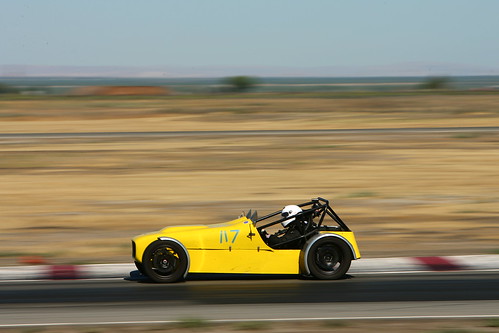
We finished 44th out of 85 cars (full results). Our pace was really good but we lost a lot of time (3+ hours) due to some mechanical issues. I’ll be writing up more detail of how the race went and our band-aid mechanical fixes over the next few days. In the meantime here is some video of the race start.
Yesterday we had a pretty good test day at Altamont. All of us did a few laps behind the wheel to get a feel for the car and the track. The car ran very fast and we all did 54 sec laps with Jyri doing a best of 52. We did have some tire wear issues with our right front tire due to the long banked turns – we will be doing some emergency camber adjustments to the front to fix that.
Here is a photo of me passing someone on the outside of the banking and a video of Jyri doing some quick laps under lights.
Day three of car prep was all about getting the engine running. At this point we had had the car with us for several months but we hadn’t yet heard the damn thing run.
We started up by tightening up the head bolts and putting in a new timing belt. After that we adjusted the valve spacing (space between camshaft and valve stem) and began reconnecting that various fuel hoses and wires. We decided not to put the cooling system in until the engine was in running condition to give ourselves some work room in case we needed to replace any additional parts. After everything was connected back up we added some more oil to the engine and started it for the first time.
After sorting out some initial issues with some blown fuses, the car started on just the second attempt. The cloud of smoke on the side was a combination of an untightened exhaust manifold and some oil burning off. After this major success we decided to wrap up the day and were actually able to drive the car outside to park it. It still doesn’t have a cooling system so we havent run it for any length of time but the fact that it moves under its own power and doesn’t make any weird noises is a great sign.
I’ve been very interested in the 24 Hours of Lemons since I first heard about it last year and when I found out that the first race of the year was this past weekend I just had to go check it out. The Altamont Motorsports Park in Tracy, CA is the home of the race and features two ovals which are interconnected to create a road-course for the Lemons race. The cars all had to be bought and race prepped for under $500 (excluding safety gear) with a team of 4-6 drivers. Despite the name the actual racing would only go on for about 14 hours with a 10 hour break at night to let people recuperate as well as repair their cars.
I got there just as the drivers meeting got underway and found that it was pretty well organized. The organizers were very strict about a no bumping/no blocking rule and had come up with a set of humourous punishments for the drivers that broke the rules. The competitors would spin the “Wheel of Misfortune” and have to serve whatever penalty that came up. Some of the penalties included:
The Al Gore Carbon Replacement penalty: The competitor would have to wear a tie-die shirt and then plant a rather large sapling in the ground before they could continue.
The Colonel Sanders where the participant would be doused in soapy water and then feathered using large pillows.
The Legion of Odour involved hanging a half pound of smelly blue cheese around the drivers neck as well as placing another pound of it on the hot intake manifold – should make for a truly odourous experience.
The Egg Man winner (or loser) would have an open bucket of eggs welded to the hood of their cars – the idea being that as they drove the eggs would fall out of the bucket and smear the car.
My favourite was the Highway 17 penalty where the driver would have to follow a VW microbus around the track for 10 laps.
Anyone who bumped other cars on the track would initially have a set of training wheels welded to the sides of their cars
Repeat “bumpers” would get the Sword of Damocles penalty where a plate with sharpened spikes would be welded to their radiator with the spikes pointing inwards. At this point they were let out on track knowing that their next bump would be their last.
The organizers required that the drivers have some sort of competition license and the racetrack was more than happy to sell you a NASCAR license at the gate for just $75 dollars. The fact that people could buy licenses at the door was the main factor that dissuaded me from running the Lemons race last year – after all who want to be side by side with a novice driver in a $500 car. However it looked like the penalties did a good job of keeping the track action pretty clean – the serious racer didn’t want to lose the time while the joyriders didn’t want the embarrassment. The speeds are low as well which keeps the event pretty safe. One of the teams was racing an 80′s Golf which went into the tirewall and flipped onto its roof. The track was immediately red flagged and the safety vehicles were at the car in under 5 minutes. The driver was completely unhurt and with the help of the marshal he roled the car back onto its wheels before continuing with the race .
All in all it was a great event and I am seriously trying to get an official SFF1 entry together for the October race (UPDATE: We just got accepted into the October event) – wish me luck. In the meantime you can look at a video I shot as well as some photos of my favourite cars. I have posted the full collection of photos on Flickr though you will probably be better off looking at the excellent photoset that Nithya just posted.
I finally got around to editing and uploading some of the video* I recorded during my last trackday. This was the first time I was using the Nokia N95 and I had high expectations from the high-rez camera. As you can see over here the video quality is dramatically better than my past recordings from the N73. I have been planning on getting a ChaseCam PDR setup for a while but now that I can get such excellent video from the phone I think I will stick to my homebrew cellphone setup. There are still some issues with vibration on the high speed straights but I am confident that I can fix that adding a layer of padding (tissue/cloth) to the phone before taping it to the car.
*This video is only to show quality of the recording – the driving still needs some work
Update: The Internet Video Call application described in this post has been discontinued by Nokia and does not work any more. To do a video chat on the N800 please read my new tutorial on how to video chat using the Gizmo Project.
I recently attended Mobile Mashup 2007 and was thrilled to find that all attendees were being given an N800 Internet Tablet. I have been following the hype on the N800 for a while and while most people have been raving about it being the ultimate rss reader and the perfect coffee table web browser, I have intrigued by the video chat possibilities. Though voice and video chat are now supported by most of the major IM clients, the fact that it requires a computer, webcam and a headset means that you are pretty much anchored to one spot during the call – sure you could theoretically carry a laptop around the house but that’s too cumbersome to be done with any regularity. The N800 however comes with integrated speakers, mike, (VGA?) camera and WiFi which makes it the perfect untethered video chat appliance – in theory.
In practice I found that the N800 has a truly ridiculous user interface that does not adhere to any known UI standards. People will justify it by saying that it is running Linux and has an “expert” user interface (aka whatever the implementer felt was good), but that is no excuse for Nokia releasing it in its current state. If you are marketing a device to end users you have to make the software completely idiot proof. Sure I could download the source and make the modifications myself but the fact is that when I want to make a call all I want to do is talk to the other person – recompling linux is not an acceptable step during the calling process. Anyway, after about 3-4 hours of fiddling with the various options I was finally able to get the video chat to work and was quite impressed with the results. The audio quality is excellent and doesn’t have much lag. The video reception (see picture below) is pretty good though it is fairly low resolution. Remote users said that the camera on the N800 did not deal well with differential lighting/backlit conditions but that’s pretty much par for the course on a webcam. I was able to make video calls to friends in the US as well as to my parents in India (PC software is Windows only, Mac and Linux users are on their own). It’s pretty cool to be able to walk around the house while video chatting without worrying about power, network, camera, headset, etc… The fact that the screen and the camera are so close to each other means that the line of sight problem is minimized as well. The experience is similar to what I expect cellphone video calls to be like – if they were actually cheap enough to make.
Since a bunch of us at the lab have this device we have been playing around with using it almost like the media spaces project. Shane and I sat at different ends of the room during the CHI Sampler and left the video channel open throughout (audio muted). It was quite interesting to be able to see other people reactions to the talks. Since there was no audio we had use an improvised sign language to communicate until Ayman came up with the idea of typing messages on your cellphone and then holding the phone screen up to the webcam. We also tried setting our devices to so both cameras would point to the speaker so we could see different points of view on a single talk. I don’t think this is something you will do often, but I can see it being a useful backchannel when non-colocated people are working together. The fact that it is a separate device makes it feel more like a real communication channel than the webcam window on a PC IM client.
N800 Video call tutorial
Now for the truly useful part of this post – a step by step tutorial on setting up video chat so that future buyers wont end up pulling their hair out. If you are not sure about what buttons I am referring to please click through onto the image above, I have marked out the important icons using Flickr notes.
Update the OS
Download the software update utility from Nokia and update the OS. The newest version of the OS is more stable than the one the N800 ships with. Dont forget to back up any existing data before the update.
Setup the WiFi
To make an internet video call you first need the internet, if you haven’t set it up during your first boot just follow these steps.
Open the “Control Panel” from Start Button (the button on the left that has two window icons on it) -> Tools -> Control Panel
Open the Connectivity application and click the “Connections” button
Click “New” to open the connection setup wizard and then tap “Next” to continue
Name the connection, set the connection type to “WLAN” and tap next
You will get dialog asking “Scan for available WLAN networks?”. Tap Yes
You will now be presented with a list of available networks. Just select the one you want to connect to and tap next. You will be prompted to enter the network WEP key if the network is protected.
Tap “Finish” to save you new internet settings
Setup a Google Talk/Jabber account
In order to invite someone to start a video/voice chat with you you need to make them a contact. The easiest way to do this is to sign into an existing Google talk account since all that needs is a Gmail account and password.
First go back to the control panel and open the “Accounts” application.
Hit “New” to create a new account. Hit next once the Account Setup wizard opens.
Select “Google Talk” as the service and tap Next. You should theoretically be able to do the same with any Jabber account but I have not tried this and YMMV.
If you have an existing Google Talk account select that option or else select “create new account”. Tap Next to continue.
Enter your username and passowrd before tapping Next.
Hit “Finish” to complete account setup.
If your account was setup correctly you should see a green ball icon to the right of the bluetooth icon on the status bar (top right of the screen).
Send call invitation
This is the step where you actually invite someone (on either a Windows PC or another N800) to join you in an internet call
Start by opening the camera on the tablet. It is the little circle on the left edge of the tablet when you are looking at the screen. Push the circle with your finger and the camera should pop out. The internet call application will also open but you can close it for now.
Click on the “Communication” icon on the left taskbar. It looks similar to the tray icon for MSN messenger and looks like two figures in pink and purple.
Select “Send call invitation” from the menu.
A dialog box will pop up asking you what name you want to use for you internet calls. Type in whatever screen name you would like to use.
This will open a window asking how you want to send the invite. Select the “Send invitation via chat” option and tap “Ok”
This will open the Instant Messaging application and will display a window asking you to “Select contact for invitation”. Select the contact you want to invite and tap “Ok”
The IM application will open a chat window and send the other person a message saying “XXXX is inviting you to star an Internet video call (voice-only calling also supported). Click the following link for further instructions”.
If the person you are calling has an N800 then they will get directly get an incoming call dialog which they can answer to start the call.
If the remote person is on a Windows PC they should click on the which will take them to a page that looks like this. If the initial link was valid (it should have some url parameters) the “Install Software” button on the page will be in colour.
When the remote user clicks on that button the user will be prompted to install the Nokia Internet call software. It is a 11 MB download and have the usual install screens, the user can just keept hitting next
Once the software is installed, the remote user should go back to the initial install page and click the “Add contact” button at the bottom of the second column. This button only appears on valid pages (it will not appear on the link on step 9) and only if the downloaded software is correctly installed.
Once the remote user had clicked the “Add contact” button you should get an authorization request on the tablet. There will be an audio notification and the “Communication” button in the left taskbar will change colour to red and green. You can authorize the request by tapping the button and then selecting “Authorize XXX” option. You can also add the remote user as a contact by selecting the “Add XXX” option.
Once the authorization is done you should get an “Incoming call” notification. Once you select the green telephone icon it will open an internet call between the you and the remote contact. If both users have a webcam it will have a video channel or else it will be a voice only call.
Once you have actually set up you first call everything else should go pretty smoothly. If you want to call someone you have spoken to before just open the Internet call application and pick them out of the recent calls list. The software does not show if a person currently has video call capability so you may occasionally find that someone who has switched to another PC may have to go through another invite/install process. The call application is a bit buggy and sometimes will not make outgoing call (you get an error message saying “unable to connect”), in this try asking the remote user to call you – that seems to always work for me. One last point is that because the internet call and IM clients are different applications you cannot see both screen at the same time making this a either a pure audio/video chat or a pure text chat – it isn’t too much of a loss because the text entry using the stylus is soooooo slow that you very quickly give up on the text chat.
If this has gotten you interested and you want to buy an N800 just head on over to the Nokia site.
I am a great fan of in-car video during HPDEs. It is a great tool to analyze your performance and see how different lines have affected you laptimes – works even better when you have a DL1 or some other data logger. In-car video is also a great way to give people an idea of what its like to track a car and maybe even understand you keep grinning from ear to ear after each event.
However when I see the average setup (for an Elise) at an HPDE it looks to go one of two ways
1) The full on treatment: This is a full on video system that gives you the best quality video and audio and will usually record several hours without any issues. Some of the equipment that this requires is
This kind of a setup will give you close to pro level AV and is the next best thing to actually sitting in the car. However the total price tag of around $1200 bucks (not including harness installation) is usually out of the price range of all but the most avid track junkies.
2) Track video lite: This setup tries to replicate the quality of the track video but uses consumer grade electronics and usually does not leave any permanent alterations to the car. The parts list includes
Solid state Camera: $300-$500 for either commercial point and shoot camera or a consumer camcorder
Solid state memory: ~$100 for a 4 GB CF card
Portable storage: Since these cameras fill up memory very quickly you will have to download the video between sessions to either a laptop or a storage solution like the Wolverine ($150)
This system is considerably cheaper (~$550 excluding storage) and is probably the most popular HPDE setup. The quality is pretty decent (800 x 600 or 640 x 480) though people say that the vibration affects the image stabilization systems on these cameras and track life is only about 2 years. Additionally you have to use some sort of storage system to suck the video out between lap sessions and that can get tiresome. While you can mix and match components to get a setup for < $500, it's still quite pricey for someone who is still deciding how much to invest in track equipment.
A looking for a cheaper alternative
This got me thinking about possible ways to record video for free to see how useful it is before actually investing in a full on setup. One of the most ubiquitous technologies to emerge in recent years has been the cameraphone which invariably has a video mode as well. Now off course the video quality of the cameraphone is dependant on the device, but newer devices usually have at least 2 megapixels and can use large memory cards to store virtually limitless video. Phones are built to withstand rougher use than a camera (they go through several types of drop tests) and being solid state they are less affected by vibration. I then decided to build my own in-car video setup using a cellphone.
My Setup
The latest device that I have been playing with is the Nokia N73 which has a 3.2 megapixel camera and can hold 2GB miniSD card. It records video at a resolution of 320 x 240 and saves it as mp4 files which can be read on any PC. Since an hour of video only takes ~300 MB, I knew that a 2GB would be more than enough to record video for an entire track weekend. I didnt mind spending the money (~$40) on the card because I knew that even if I didn’t use it for video I would definitely use it to store music on my phone.
The mounting device was little trickier, the cameraphone has no mount points on it which meant that I couldn’t use any of the traditional mounting systems (would have been out of my budget anyway). However while looking at the interior of the car I realized that the back window of the Elise is perfectly vertical and if I could attach the phone to the window I would probably be able to get a good view out the front.
When it came to the actual attachment I decided to use painters tape instead since it has relatively high shear strength and leaves no residue which is important since I didn’t want to mess up my phone. Additionally the N73 only weighs a 116 grams which will barely put any shear forces on the tape. This mounting system will of course only work for candybar style phones and not clamshells because you cannot tape an open clamshell to the inside of the window. You begin by taking a 2-3 foot strip of painters tape and cut a small hole in the center for the lens.
You then open the lens cap of the phone if any and place it on the tape such that the lens is right over the hole. If your phone does not have a side accessible button to turn on the camera you will have to turn on the camera and start recording at this point.
Now you just take the strip (with the phone attached) and tape it to the bottom edge of the rear window. You can add some padding material between the glass and the phone though I found that this really wasn’t necessary.
Thats it – just remember to turn on the phone camera at the start of every session.
The video shot this way is obviously not as good as the video from the earlier systems but for its price ($40 for the card and $1 for the tape) it gives more than enough detail to understand what is happening at the track. Additionally if you are going to post the video online on YouTube, Google Video or Yahoo video, these system usually transcode your video down to 320 x 240 anyway so you arent really loosing that much quality. I am looking forward to getting my hands on the new Nokia N95 which shoots video at 640 x 480 – that should really give the other systems a run for their money
You can download a full resolution video from here (9 MB transcoded WMV). I have also made a JumpCut video of my best lap (and a small ‘incident’) with captions and other fun stuff – RSS readers point your browsers here.
UPDATE: I have posted some sample track video from the N95 in a separate post – the video quality is dramatically better and good enough to postpone my PDR100 plans
RT @cjmartin: Fun to see one of @rnair's photos (http://flic.kr/p/aPeaf) featured in this video created using CC Flickr photos: http://b ... 2010/08/18
Just got Sir Stirling Moss to sign my Lotus F1 heritage poster 2010/08/14