Archive for May, 2007

One lap of Reno-Fernley Raceway (N95 video)

Wednesday, May 30th, 2007


Lap of Reno-Fernley Raceway (Nokia N95) from rnair on Vimeo

I finally got around to editing and uploading some of the video* I recorded during my last trackday. This was the first time I was using the Nokia N95 and I had high expectations from the high-rez camera. As you can see over here the video quality is dramatically better than my past recordings from the N73. I have been planning on getting a ChaseCam PDR setup for a while but now that I can get such excellent video from the phone I think I will stick to my homebrew cellphone setup. There are still some issues with vibration on the high speed straights but I am confident that I can fix that adding a layer of padding (tissue/cloth) to the phone before taping it to the car.

*This video is only to show quality of the recording – the driving still needs some work :)

  • Share/Bookmark

GeoRSS maker

Tuesday, May 29th, 2007

I’ve had some time over the weekend and decided to put some finishing touches on a couple of mashups that I started a few months ago but never completed. The first of these is the GeoRSS Maker which is something I dreamed up when I was making a GeoRSS file for my F1 circuit guide. At that time the process I uses was to first make a GeoRSS template file with a bunch of empty item elements before manually looking up the geographical coordinates of each individual racetrack(usually available on wikipedia) and entering the data into the template. This process was painful enough that I decided to build an automated way to extract coordinates from Wikipedia and insert them into a GeoRSS file.

After a little bit of searching I found the Geonames.org website which is a “geographical database is available for download free of charge under a creative commons attribution license. It contains over eight million geographical names and consists of 6.5 million unique features…”. The data is accessible through a webservice which allows you to send in a query sting and they will return a list of locations that match the query string. Now this is excellent when it comes to names of cities and towns but unfortunately their database does not yet include information about smaller features within a city such as racetracks. Fortunately they have realized this and have a second webservice that allows you to do a full text search of geocoded Wikipedia articles to extract the locations such as Silverstone circuit or Brands Hatch.

Inner workings
When the user enters a search term and presses the “Search” button, GeoRSS maker contacts the Geonames webservice and returns the top 5 results that match the users query. If there are no results it searches Wikipedia for geocoded articles that match the search term. All results are shown along with links to the originating website as well as Google and Yahoo maps of that location. Once the user has verified the location from the description and links, he/she can hit the “Add (Item)” button to add the item to the GeoRSS displayed on the bottom of the page. The user can do multiple searches and once all the required items are added he/she can just copy and paste the GeoRSS to save it as a separate text file. Advanced users can enter text to the category field if they want to set the category on the output GeoRSS items (this was mainly done because TagMaps uses the category field as a size parameter). The “Clear” button will erase all the search results as well as reset the GeoRSS output.

Head on over to the GeoRSS Maker webpage to try it out for yourself. As always this is a mashup with no guarantees – use at you own risk.

  • Share/Bookmark

Spinning out at 95 mph

Friday, May 18th, 2007

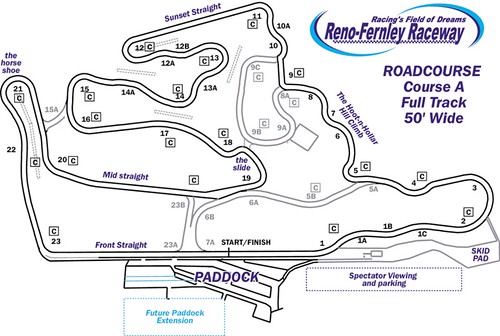
Reno-Fernley course map

I was at the NCRC trackday at Reno-Fernley Raceway last weekend when I got some first hand experience of what happens in a high speed spin. I was coming down the front straight at well over 100 mph and slowed slightly to take the esses that make up turn 1. Now on the track map they may look like fairly severe turns but in actual fact you just lift a little bit to settle the car at the end of the straight before flooring it though S bends. On this particular lap I came in a little hotter than on my previous runs and just after i made it though turn 1 (but before 1A) the back end came around and I flew off the track at 95 mph.

People have asked me if my life flashed before my eyes but in reality the only thought that went through my head was “Please don’t flip!” :-) . The car was surrounded by a massive dust cloud which meant that I had zero visibility – I had the sensation of spinning and slowing down but had no clue as to which direction I was heading. As is standard practice during a spin I “put both feet in” (hit the clutch and brake) to ensure that the car has a predictable trajectory so that other drivers can avoid it. It probably took about 30 sec to a minute for the dust to settle but it felt like an eternity as I had no idea where on track I was or what the condition of the car was. Once the dust settled I found that I was in the sand/gravel trap about 50-60 feet from the left edge of the track and having done at least one 360, pointing in the correct direction. I started up the engine but since I couldn’t actually see much of the road in front of me I backed the car up about 10 feet. Moving the car turned out to be an excellent idea because the dried grass under the engine bay had caught fire and when I moved I could see that the spot I had stopped in was actually burning (maybe 4-6 inches on flame). I then waited for a couple of the cars to pass before slowly driving through the gravel trap and rejoining the circuit. The car initially felt fine but as soon as I took a right turn I found that the steering was pulling to the left. While I initially feared suspension damage, by the time I got to the pits I was pretty sure that it was a flat in my left front tyre.

Examining the wheel in the pits showed that the flat was due to the tyre popping off its bead rather than an actual puncture. I borrowed a jack and pulled off the tyre before inflating it and reseating the bead. Luckily the wheel had no damage and the tyre held air with no leaks. I also checked for suspension damage but thankfully everything was solid. Now that the my greatest fear was passed, I examined the rest of the car for damage and amazingly the only other issues were a broken mirror on the drivers side and some minor paint chipping on the drivers door. The car itself was absolutely filthy with a thick layer of dust coating every square inch of the interior and exterior. I knew that going into the gravel trap would be dusty but never expected it to be this bad – my passenger commented that it felt like a dump truck had poured a load of dirt into the cabin. I drove into local car wash during the lunch break and washed the exterior of the car before spending a small fortune on vacuuming the dirt out of the interior. In about 2 hours time the car was most back to normal and looked like merely a dirty car rather an absolute write-off.

12052007591

Never lift!!!

Result of the spin

Post Mortem
Since this was my first track day with a DL1 data logger, I actually had detailed logs to help me diagnose what exactly went wrong in the corner. The first diagram shows the line I took through turn 1 while the second is a graph showing the speed and longitudinal G force plotted against distance. The red line is the lap I went off on and the black line is data from my previous flying lap. The first thing I noticed that my speed down the front straight was significantly higher than on that lap (114 mph Vs 107 mph). This meant that when I lifted to set the car up for turn 1 it took longer to get to the right speed and I ended up going into the corner a bit too wide (figure 1). As a result of this the car got a little loose through the turn and I instinctively lifted of the throttle just a tiny bit (figure 2). This created a classic case of lift-off oversteer where the weight transfered to the front wheels causing the rear to lose traction and come around. I have experimented with lift-off oversteer before and even use it at autocross to rotate the car but this was the first (and hopefully the last) time this has happened to me at such a high speed. It was a pretty scary experience and happened so fast that I had absolutely no chance of catching it – all I could do was hold on and hope for the best.

dl1 map trace

dl1 xy

In the end I was extremely lucky to walk away from a near triple digit spin with nothing more than a broken side mirror and a very dirty car. Having the DL1 was extremely useful in diagnosing the issue (especially since I don’t recall lifting but the data doesn’t lie) and gave me more confidence about going back onto the track. The next day I was back on the track and while I was initially a bit gun shy of turn 1, by the end of the day I was taking it at regular speed. All in all it was a very educational experience and reinforced the need to follow the mid-engine car drivers mantra – “Don’t lift” :-) .

Update: I’ve posted this as an EliseTalk thread that is getting some interesting feedback and ‘confessions’ :-D

[tags]trackday, Reno-fernley, oversteer, spin, 360, DL1[/tags]

  • Share/Bookmark

My Precious

Thursday, May 17th, 2007

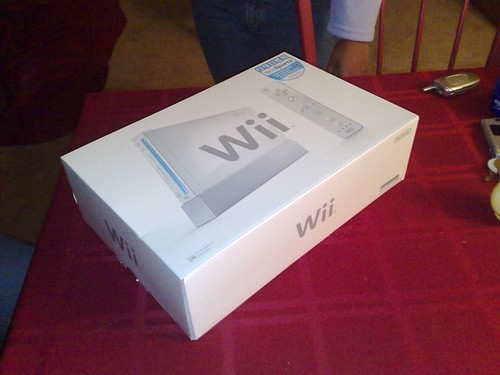
My precious
A big thanks to my friend Sowmya for getting me a Nintendo Wii from the EA store. If you are still looking for one just ask your friendly neighborhood EA employee to pick one up from their company store – they apparently get 5-10 units every day.

Unfortunately I haven’t yet played with it yet because after I hooked it up to the TV I couldn’t find the damn TV remote wall bashwall bashwall bash.

  • Share/Bookmark

Media from the Green Hell

Tuesday, May 15th, 2007

The following is a post I wrote for the YRB blog. My readers get the bonus YouTube footage directly embedded on the page :-)


A few weeks ago when the research community was looking at CHI, Formula 1 racing fans were looking at Germany to watch a very different event. Nick Heidfeld was driving a F1 car around the famed Nürburgring-Nordschleife circuit in Germany. “The Green Hell” as it is popularly known is one of the toughest race tracks on the planet and last hosted an F1 race back in 1976 when Niki Lauda’ near fatal crash put an end to F1 at the track. It has since been used only for sports car racing and also as a public access race track. On April 28, BMW organized a special event where several of their racing cars would be driven around the ring including 3 laps in their 2006 BMW F1 car. The event had F1 fans all over the world speculating about possible laptimes and thousands showed up to watch the event live.

At this point you are probably wondering what this has to do with YRB. The answer is media: the very first images and videos of the event came from Flickr and YouTube. This is not new to the world of journalism, public citizens have been scooping the press for years. With the rise of the Internet, bloggers have started breaking stories and are often authorities on specific topics. However this event was a bit different because it was specifically conceived of as a public relations opportunity. The BMW PR machine had been hyping the event for weeks and had a full team there to capture the event in its full glory. Within 24 hours of the event they released a slickly edited video showing the highlights around the lap. It included onboard footage, helicopter shots and even video from chase cars. Despite all the effort and the fairly quick turnaround time, the corporate PR machine was beaten by a handful of people with cheap camcorders and Internet access. Not only was the fan media the first to be available, it also showed many things that the official video did not. You could see things like the size of the crowd, the sound of a distant F1 engine, the wait for the car to go past, there were even a few shots of the camera car.

This kind of situation leaves the consumer with an interesting choice: On one hand you have the quick and dirty fan media which is immediately available and on the other hand there is the better edited professional media which is available with some delay but usually more comprehensive. The consumer now have to decide which source they want their information from and that will depend on the topic and its time sensitivity. This choice is going to become even harder in the future as fans start editing their media more and the professionals speed up their editing process. I believe that in the end trust and authority will become the deciding factor – all else being equal users will choose the source that they trust the most.

At YRB we are very interested in both sources of media and are studying how people collect, consume, share and remix media. We don’t know what media sources will “win” but we do know that this is a very interesting time for research.

Photo by peve.de.

Official BMW video

Fan Videos


[tags]media, sharing, F1, formula 1, Nürburgring, video[/tags]

  • Share/Bookmark

Lotus without wheels

Sunday, May 6th, 2007

A Lotus without wheels
Of the 500+ photos I have tagged Lotus – this is the first photo without any wheels in it :-)

  • Share/Bookmark

Travelling the US in an Elise

Thursday, May 3rd, 2007

Doug just put up a video of Jared and his trip across the US in their Elises. They drove 8000+ miles in 25 days and met many other Lotus owners across the country, I met them for dinner when they stopped of in the Bay area. The camaraderie within the Lotus community is amazing, I cant think of another marque that has such a welcoming network of enthusiasts around the world – the legendary Lotus unreliability and the Travelers assistance network definitely helped create it :-) .

I am planning on driving to Vancouver and back in June, I hope I have as much fun – just need to convince Nithya that I need a ChaseCam to record the trip :-D . You can read more about Dougs trip on his blog or on the original EliseTalk thread.

[tags]Lotus, Elise, road trip, vacation, video[/tags]

  • Share/Bookmark

Video chat on the Nokia N800 internet tablet (tutorial)

Wednesday, May 2nd, 2007

Update: The Internet Video Call application described in this post has been discontinued by Nokia and does not work any more. To do a video chat on the N800 please read my new tutorial on how to video chat using the Gizmo Project.

I recently attended Mobile Mashup 2007 and was thrilled to find that all attendees were being given an N800 Internet Tablet. I have been following the hype on the N800 for a while and while most people have been raving about it being the ultimate rss reader and the perfect coffee table web browser, I have intrigued by the video chat possibilities. Though voice and video chat are now supported by most of the major IM clients, the fact that it requires a computer, webcam and a headset means that you are pretty much anchored to one spot during the call – sure you could theoretically carry a laptop around the house but that’s too cumbersome to be done with any regularity. The N800 however comes with integrated speakers, mike, (VGA?) camera and WiFi which makes it the perfect untethered video chat appliance – in theory.

In practice I found that the N800 has a truly ridiculous user interface that does not adhere to any known UI standards. People will justify it by saying that it is running Linux and has an “expert” user interface (aka whatever the implementer felt was good), but that is no excuse for Nokia releasing it in its current state. If you are marketing a device to end users you have to make the software completely idiot proof. Sure I could download the source and make the modifications myself but the fact is that when I want to make a call all I want to do is talk to the other person – recompling linux is not an acceptable step during the calling process. Anyway, after about 3-4 hours of fiddling with the various options I was finally able to get the video chat to work and was quite impressed with the results. The audio quality is excellent and doesn’t have much lag. The video reception (see picture below) is pretty good though it is fairly low resolution. Remote users said that the camera on the N800 did not deal well with differential lighting/backlit conditions but that’s pretty much par for the course on a webcam. I was able to make video calls to friends in the US as well as to my parents in India (PC software is Windows only, Mac and Linux users are on their own). It’s pretty cool to be able to walk around the house while video chatting without worrying about power, network, camera, headset, etc… The fact that the screen and the camera are so close to each other means that the line of sight problem is minimized as well. The experience is similar to what I expect cellphone video calls to be like – if they were actually cheap enough to make. :-)

Since a bunch of us at the lab have this device we have been playing around with using it almost like the media spaces project. Shane and I sat at different ends of the room during the CHI Sampler and left the video channel open throughout (audio muted). It was quite interesting to be able to see other people reactions to the talks. Since there was no audio we had use an improvised sign language to communicate until Ayman came up with the idea of typing messages on your cellphone and then holding the phone screen up to the webcam. We also tried setting our devices to so both cameras would point to the speaker so we could see different points of view on a single talk. I don’t think this is something you will do often, but I can see it being a useful backchannel when non-colocated people are working together. The fact that it is a separate device makes it feel more like a real communication channel than the webcam window on a PC IM client.
Nokia N800 video call interface

N800 Video call tutorial

Now for the truly useful part of this post – a step by step tutorial on setting up video chat so that future buyers wont end up pulling their hair out. If you are not sure about what buttons I am referring to please click through onto the image above, I have marked out the important icons using Flickr notes.

Update the OS

Download the software update utility from Nokia and update the OS. The newest version of the OS is more stable than the one the N800 ships with. Dont forget to back up any existing data before the update.

Setup the WiFi

To make an internet video call you first need the internet, if you haven’t set it up during your first boot just follow these steps.

  1. Open the “Control Panel” from Start Button (the button on the left that has two window icons on it) -> Tools -> Control Panel
  2. Open the Connectivity application and click the “Connections” button
  3. Click “New” to open the connection setup wizard and then tap “Next” to continue
  4. Name the connection, set the connection type to “WLAN” and tap next
  5. You will get dialog asking “Scan for available WLAN networks?”. Tap Yes
  6. You will now be presented with a list of available networks. Just select the one you want to connect to and tap next. You will be prompted to enter the network WEP key if the network is protected.
  7. Tap “Finish” to save you new internet settings

Setup a Google Talk/Jabber account

In order to invite someone to start a video/voice chat with you you need to make them a contact. The easiest way to do this is to sign into an existing Google talk account since all that needs is a Gmail account and password.

  1. First go back to the control panel and open the “Accounts” application.
  2. Hit “New” to create a new account. Hit next once the Account Setup wizard opens.
  3. Select “Google Talk” as the service and tap Next. You should theoretically be able to do the same with any Jabber account but I have not tried this and YMMV.
  4. If you have an existing Google Talk account select that option or else select “create new account”. Tap Next to continue.
  5. Enter your username and passowrd before tapping Next.
  6. Hit “Finish” to complete account setup.
  7. If your account was setup correctly you should see a green ball icon to the right of the bluetooth icon on the status bar (top right of the screen).

Send call invitation

This is the step where you actually invite someone (on either a Windows PC or another N800) to join you in an internet call

  1. Start by opening the camera on the tablet. It is the little circle on the left edge of the tablet when you are looking at the screen. Push the circle with your finger and the camera should pop out. The internet call application will also open but you can close it for now.
  2. Click on the “Communication” icon on the left taskbar. It looks similar to the tray icon for MSN messenger and looks like two figures in pink and purple.
  3. Select “Send call invitation” from the menu.
  4. A dialog box will pop up asking you what name you want to use for you internet calls. Type in whatever screen name you would like to use.
  5. This will open a window asking how you want to send the invite. Select the “Send invitation via chat” option and tap “Ok”
  6. This will open the Instant Messaging application and will display a window asking you to “Select contact for invitation”. Select the contact you want to invite and tap “Ok”
  7. The IM application will open a chat window and send the other person a message saying “XXXX is inviting you to star an Internet video call (voice-only calling also supported). Click the following link for further instructions”.
  8. If the person you are calling has an N800 then they will get directly get an incoming call dialog which they can answer to start the call.
  9. If the remote person is on a Windows PC they should click on the which will take them to a page that looks like this. If the initial link was valid (it should have some url parameters) the “Install Software” button on the page will be in colour.
  10. When the remote user clicks on that button the user will be prompted to install the Nokia Internet call software. It is a 11 MB download and have the usual install screens, the user can just keept hitting next :-)
  11. Once the software is installed, the remote user should go back to the initial install page and click the “Add contact” button at the bottom of the second column. This button only appears on valid pages (it will not appear on the link on step 9) and only if the downloaded software is correctly installed.
  12. Once the remote user had clicked the “Add contact” button you should get an authorization request on the tablet. There will be an audio notification and the “Communication” button in the left taskbar will change colour to red and green. You can authorize the request by tapping the button and then selecting “Authorize XXX” option. You can also add the remote user as a contact by selecting the “Add XXX” option.
  13. Once the authorization is done you should get an “Incoming call” notification. Once you select the green telephone icon it will open an internet call between the you and the remote contact. If both users have a webcam it will have a video channel or else it will be a voice only call.

Once you have actually set up you first call everything else should go pretty smoothly. If you want to call someone you have spoken to before just open the Internet call application and pick them out of the recent calls list. The software does not show if a person currently has video call capability so you may occasionally find that someone who has switched to another PC may have to go through another invite/install process. The call application is a bit buggy and sometimes will not make outgoing call (you get an error message saying “unable to connect”), in this try asking the remote user to call you – that seems to always work for me. One last point is that because the internet call and IM clients are different applications you cannot see both screen at the same time making this a either a pure audio/video chat or a pure text chat – it isn’t too much of a loss because the text entry using the stylus is soooooo slow that you very quickly give up on the text chat.
If this has gotten you interested and you want to buy an N800 just head on over to the Nokia site.

  • Share/Bookmark